

Claude Cowork for People Who Have Never Used a Terminal
Part 1 of 3 in the Claude Cowork for Small Business Owners series.
You have heard about Claude Cowork. You have seen the viral demo where someone points it at a messy folder of receipts and it builds a spreadsheet. You want that.
Then you open a tutorial and the first instruction is “open your terminal.”
You close the tab.
This post is different. It assumes you have never opened a terminal. It assumes you run a business, not a dev team. It assumes you want Claude to do work for you, not the other way around.
By the end, you will have Claude Cowork installed, configured, and running its first task. No terminal. No code. No intimidation.
Key takeaways
- Claude Cowork runs inside the Claude Desktop app — no terminal and no code.
- Setup is six steps: install the app, enable Cowork mode, make a project folder, write a CLAUDE.md, point Claude at the folder, and give it a task.
- A CLAUDE.md file (about ten lines) tells Claude about your business so it works like an employee.
- The whole setup takes about fifteen minutes.
What is Claude Cowork?
Claude Cowork is Anthropic’s agentic mode inside the Claude Desktop app that reads your files, writes to your folders, and completes multi-step tasks for you — with no terminal and no code. For availability and system requirements, see Anthropic’s official Get started with Claude Cowork guide.
How do you use Claude Cowork without a terminal?
Install the Claude Desktop app, turn on Cowork mode, create a project folder, and add a short CLAUDE.md file describing your business. Then point Claude at the folder and ask it to do a task in plain English. No command line is involved, and the whole setup takes about fifteen minutes.
Claude Cowork vs Claude Code: what’s the difference?
| Claude Cowork | Claude Code | |
|---|---|---|
| Where it runs | Claude Desktop app | Terminal / command line |
| Who it’s for | Non-technical business owners | Software developers |
| Interface | Familiar chat window | Text commands |
| Setup | Install the app and toggle Cowork on | Install a CLI and configure it |
| Coding needed | None | Yes |
Here are the six steps:
- Download Claude Desktop
- Enable Cowork mode
- Create your first project folder
- Write your first CLAUDE.md
- Point Claude at your folder
- Give Claude its first task
Step 1: Download Claude Desktop
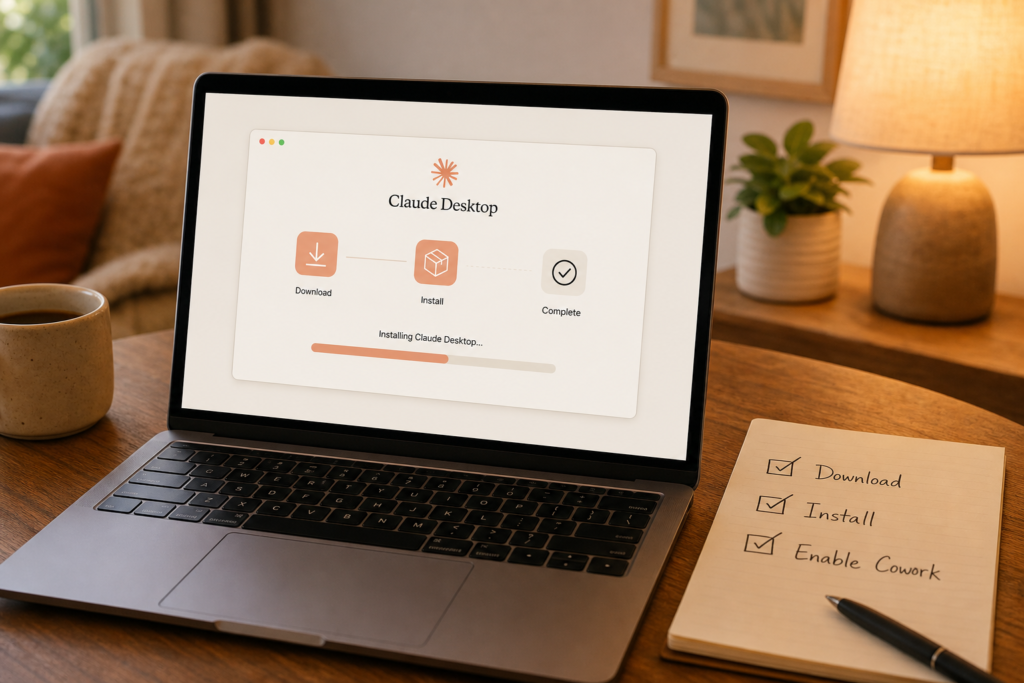
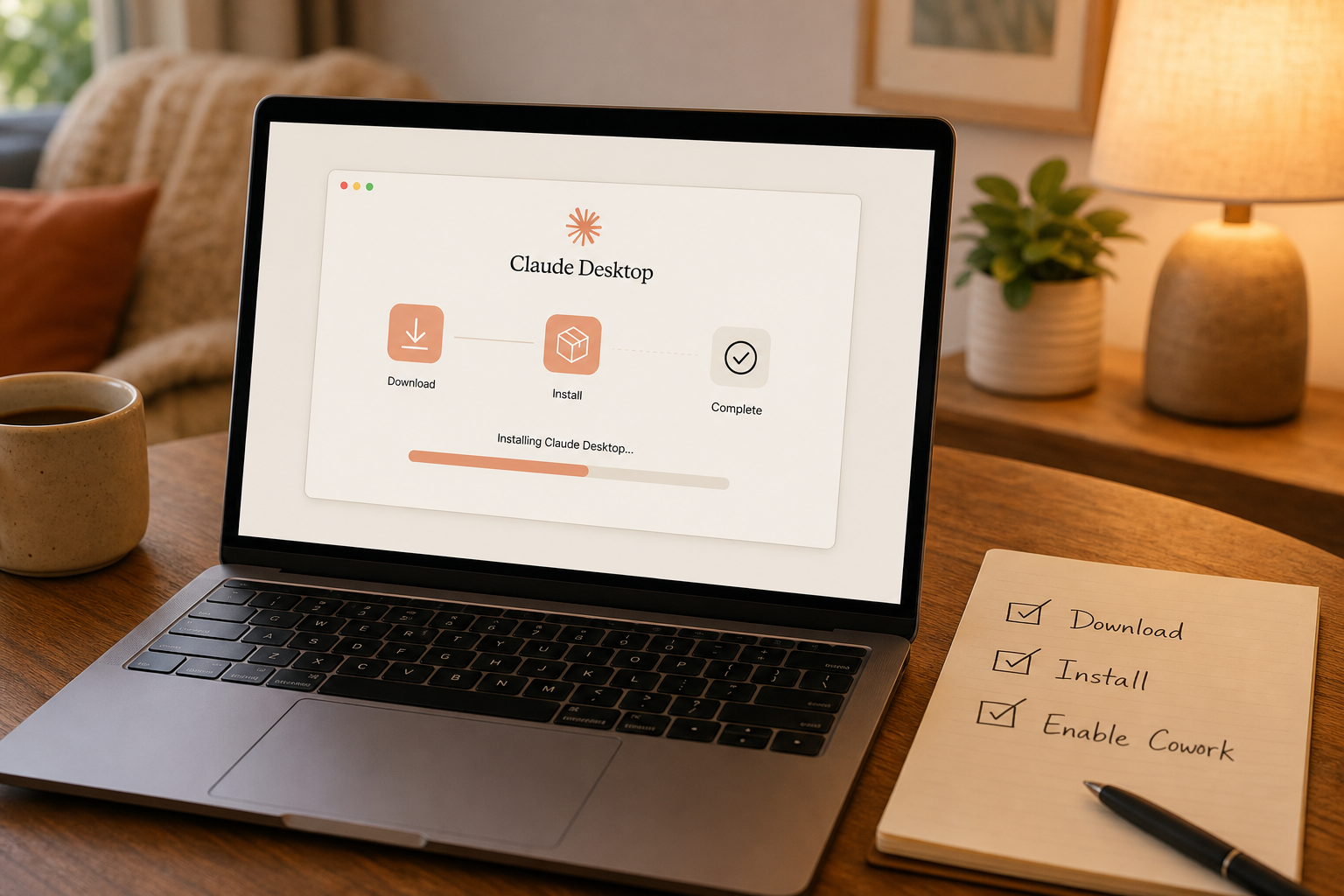
Go to claude.ai/download. Download the installer for your operating system. It is a regular app, like Spotify or Slack. Double-click to install.
That is the whole step. No terminal. No command line. Just download and install.
Step 2: Enable Cowork Mode
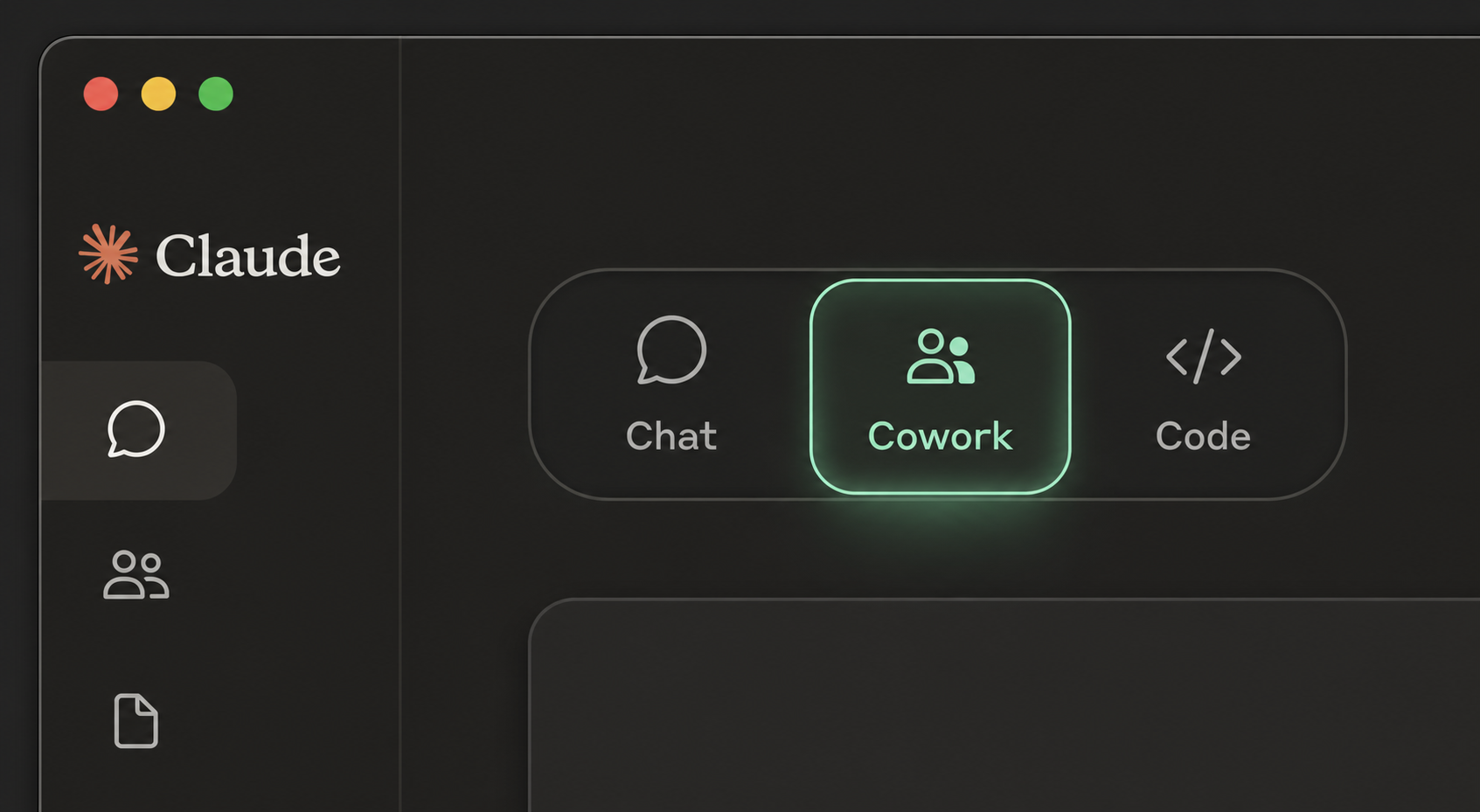
Open Claude Desktop. You will see a familiar chat interface. Look for a toggle or dropdown near the top that says “Cowork” or “Mode.” Switch it from Chat to Cowork.
If you do not see it, you may need to enable it in Settings first. Go to Claude Desktop → Settings → Features → toggle Cowork on.
You are now in Cowork mode. This is the mode where Claude can read your files, write to your folders, and do actual work, not just answer questions.
Step 3: Create Your First Project Folder
Cowork works best when you give it a dedicated workspace. Create a new folder on your desktop. Name it something obvious: “Claude Workspace” or “My Business.”
This is where Claude will read files from and write files to. It is like giving a new employee a desk. They need a place to work.
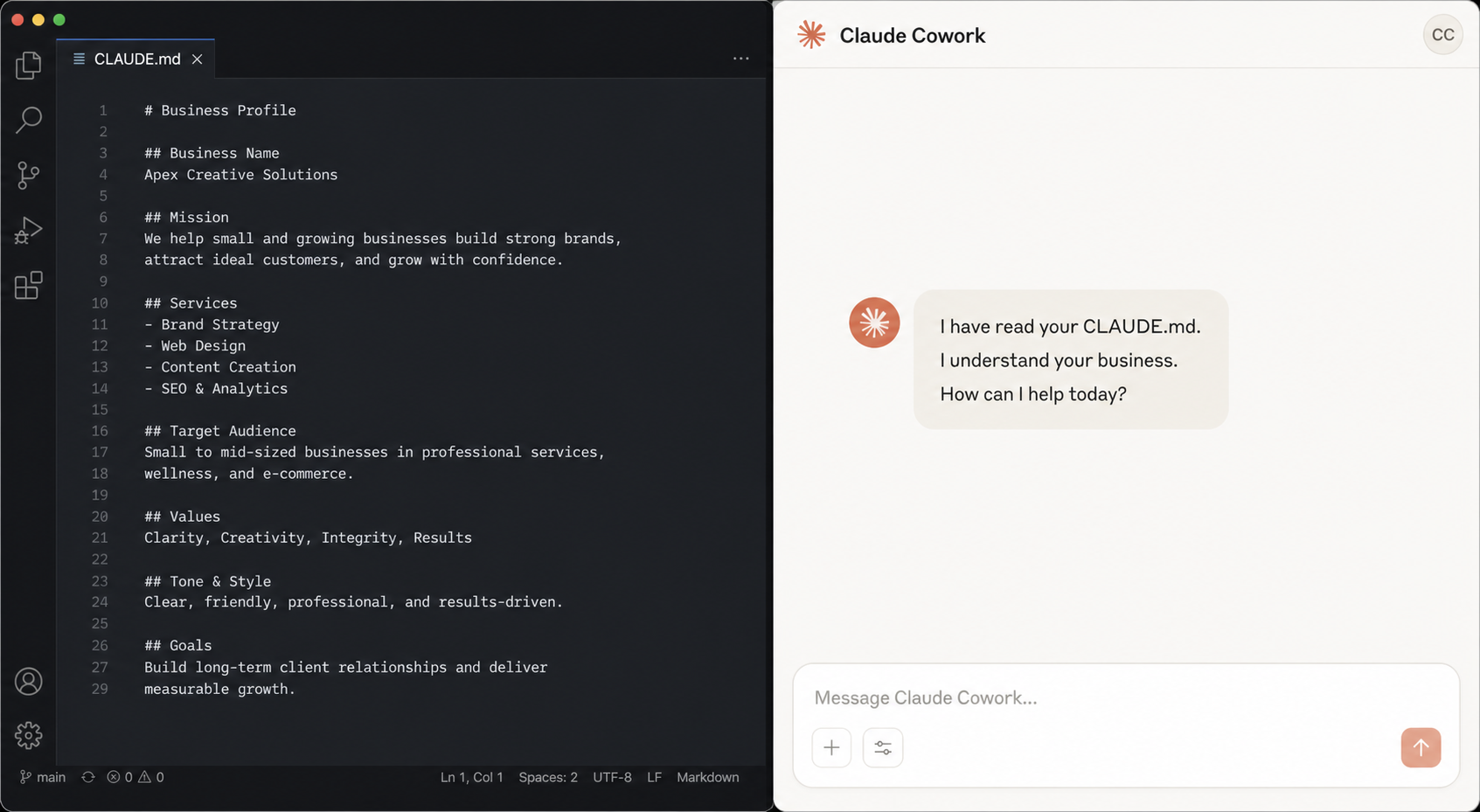
Inside this folder, create a text file called CLAUDE.md. You can use Notepad (Windows) or TextEdit (Mac). This file tells Claude who you are, what your business does, and how you want it to work.
Step 4: Write Your First CLAUDE.md
Here is a template. Copy it. Change the details to match your business. Save the file.
# About My Business

I run a small accounting firm with 3 employees.
We serve 40 small business clients.
Our work involves: invoicing, expense tracking, bank reconciliation, and tax preparation.

# How I Want You to Work

- Be professional but not formal.
- When you finish a task, summarise what you did in 2-3 sentences.
- If you are unsure about something, ask before doing it.
- Save all output files in the same folder.

# Tools I Use

- Xero for accounting
- Google Drive for documents
- Gmail for email
That is it. Ten lines. This is your employee handbook for Claude.
Step 5: Point Claude at Your Folder
In Claude Desktop, there is an option to select a project folder. Click “Open Folder” or “Select Project” and choose the folder you created in Step 3.
Claude can now see everything in that folder. It will read your CLAUDE.md automatically. It will write new files there when it completes tasks.
Step 6: Give Claude Its First Task
Type this exact sentence into Claude:
“Read my CLAUDE.md. Then create a spreadsheet called ‘weekly-receipts-template.xlsx’ with columns for Date, Vendor, Amount, Category, and Notes. Make the first row an example entry.”
Press Enter.
Claude will read your CLAUDE.md, understand your business context, create the spreadsheet, and save it to your project folder. Open the folder. The file will be there.
You just delegated your first task to an AI employee.
What just happened?
You did not write code. You did not open a terminal. You did not learn a programming language. You:
- Installed an app
- Flipped a toggle
- Created a folder
- Wrote ten lines about your business
- Asked Claude to do something
And it did it.

What else can Claude Cowork do?
That first task was a spreadsheet. But Claude can do much more. It can sort your receipts into folders by date. It can draft replies to customer emails. It can generate invoices from a list of billable hours. It can research competitors and build comparison tables.
The key is the CLAUDE.md file. The better you describe your business, the better Claude performs. Ten lines today. Twenty lines next week. It grows with you.
Frequently asked questions
Do I need to know how to code to use Claude Cowork?
No. You install a desktop app, flip a toggle, create a folder, write ten plain-English lines about your business, and ask Claude to do a task. There is no terminal, command line, or programming involved.
Is Claude Cowork the same as Claude Code?
No. Claude Code is a terminal tool aimed at developers. Claude Cowork runs inside the Claude Desktop app with a familiar chat interface, so non-technical small-business owners can use it without any command line.
What is a CLAUDE.md file and do I need one?
CLAUDE.md is a short plain-text file in your project folder that tells Claude who you are, what your business does, and how you want it to work. Ten lines is enough, and the better you describe your business, the better Claude performs.
Series navigation: Part 2: Your First 3 Workflows →
We wrote two follow-up posts to take you further:
Your First 3 Claude Cowork Workflows (No Coding Required) – Three copy-paste workflows you can use today: receipts to spreadsheet, email triage, and file organisation.
CLAUDE.md for Small Business Owners: Your 10-Line Employee Handbook – How to write a CLAUDE.md that turns Claude from a chat tool into an employee who knows your business.
And if you want structured learning, we built a one-hour mini course that walks you through every step, with templates and verification checklists.