

Your First 3 Claude Cowork Workflows (No Coding Required)
Part 2 of 3 in the Claude Cowork for Small Business Owners series.
You installed Claude Cowork. You wrote your CLAUDE.md. You asked it to create a spreadsheet and it did.
Now what?
The gap between “I made a spreadsheet” and “Claude runs my back office” is three workflows. Each one is a specific task you can copy, paste, and run today. Each one saves you 30 to 90 minutes per week.
Here they are.
Key takeaways
- Three copy-paste workflows turn Claude Cowork into a back-office helper.
- Receipts to a spreadsheet, email triage, and file organisation each save 30 to 120 minutes a week.
- Every workflow is plain English — no code — and you review the output before trusting it.
- Keep your CLAUDE.md updated and start with specific, narrow instructions.
What is a Claude Cowork workflow?
A Claude Cowork workflow is a repeatable, file-based task you describe to Claude in plain English — it reads files from a folder and writes finished files back, with no code or terminal involved. For setup and availability, see Anthropic’s official Get started with Claude Cowork guide.
What are the best first Claude Cowork workflows?
The three highest-value starting workflows are turning a folder of receipts into a categorised spreadsheet, triaging a batch of emails into urgent, routine, and junk with draft replies, and organising a messy folder by renaming and sorting every file. Each one saves roughly 30 to 120 minutes a week.
Here are the three workflows:
Workflow 1: Receipts to Spreadsheet
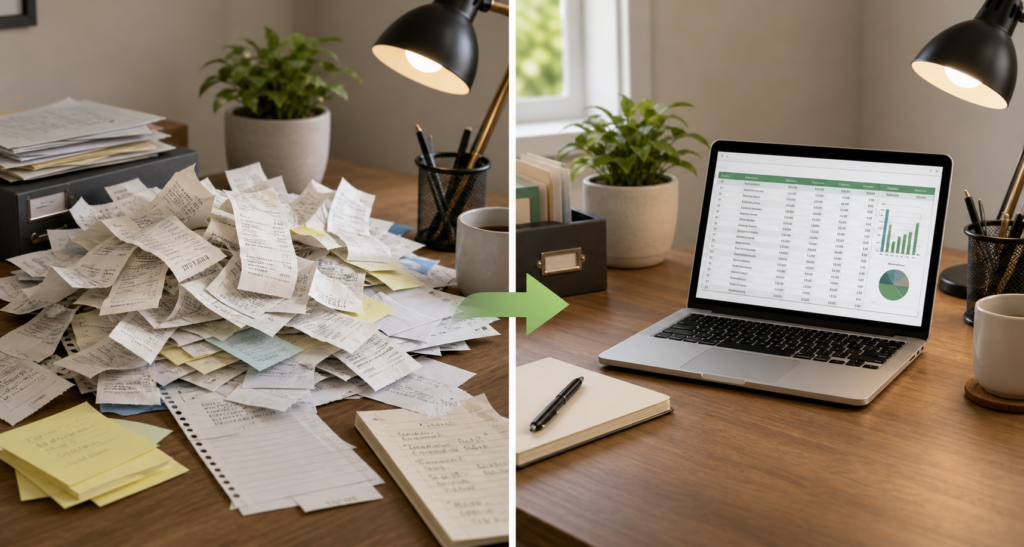
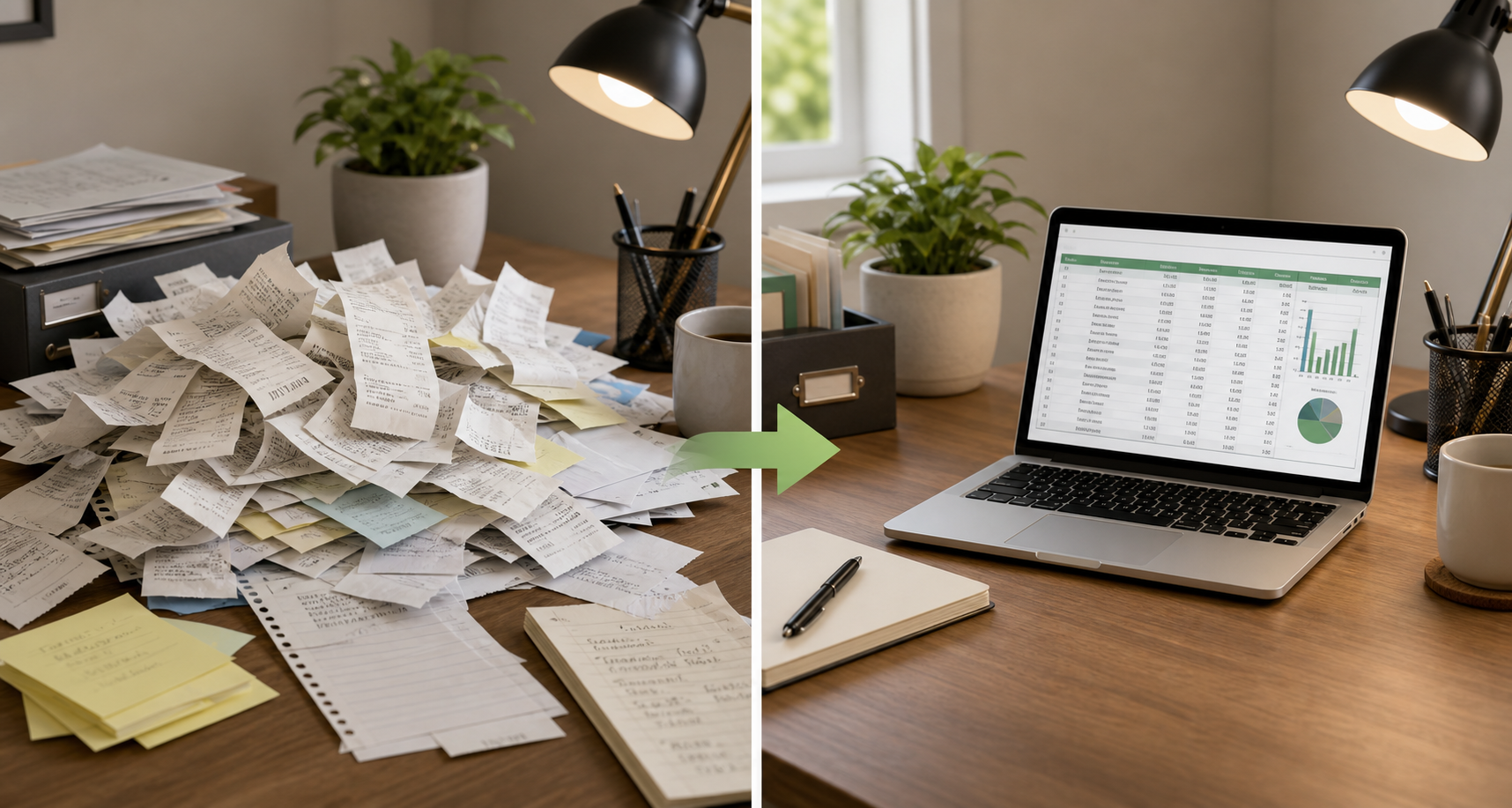
What it does: Reads every receipt image or PDF in a folder and builds a dated, categorised spreadsheet.
What you need: A folder with receipt files (photos, scans, or PDFs). Name it receipts and put it in your Claude project folder.
What to tell Claude:
“Go through every file in the receipts folder. For each receipt, extract: date, vendor name, amount, and what it was for. Create a spreadsheet called ‘receipts-log.xlsx’ with one row per receipt. Sort by date, newest first. If you cannot read a receipt, list it in a separate sheet called ‘unreadable’.”
What to expect: Claude reads each file, extracts the information, and writes the spreadsheet. It takes about 30 seconds for 10 receipts. Open the file and spot-check three entries. Claude is accurate on printed receipts, less so on handwritten ones. The “unreadable” sheet is your review queue.
Weekly time saved: 45 to 90 minutes (manual data entry).
Workflow 2: Email Triage
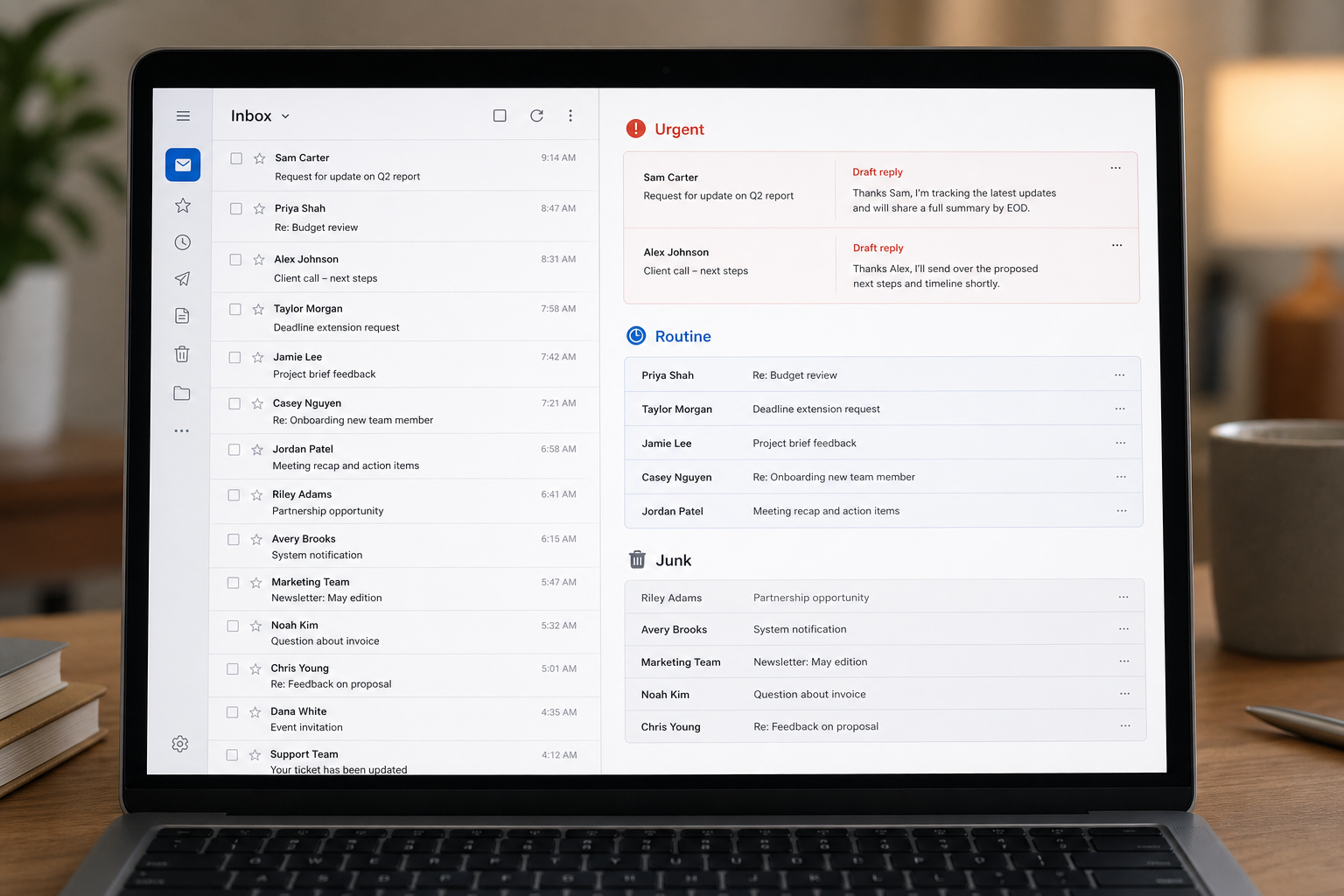
What it does: Reads a batch of emails you have exported or saved and drafts replies, flags urgent items, and deletes junk.
What you need: Export a batch of emails as individual .eml files (most email clients support this) or copy-paste email text into a text file. Put them in a folder called inbox inside your project folder.
What to tell Claude:
“Go through every file in the inbox folder. For each email: 1) Decide if it is urgent, routine, or junk. 2) For urgent emails, draft a reply that acknowledges receipt and says I will respond within 24 hours. 3) For routine emails, draft a brief reply if one is clearly needed. 4) For junk, mark it for deletion. Create a summary file called ‘inbox-triage.md’ with three sections: Urgent, Routine, and Junk. Include the draft replies under each.”
What to expect: Claude produces an organised triage document. Urgent items have draft replies ready to copy and send. Junk is clearly labelled. This does not send emails. It prepares your responses. You review and send.
Weekly time saved: 60 to 120 minutes (email processing).
Workflow 3: File Organisation
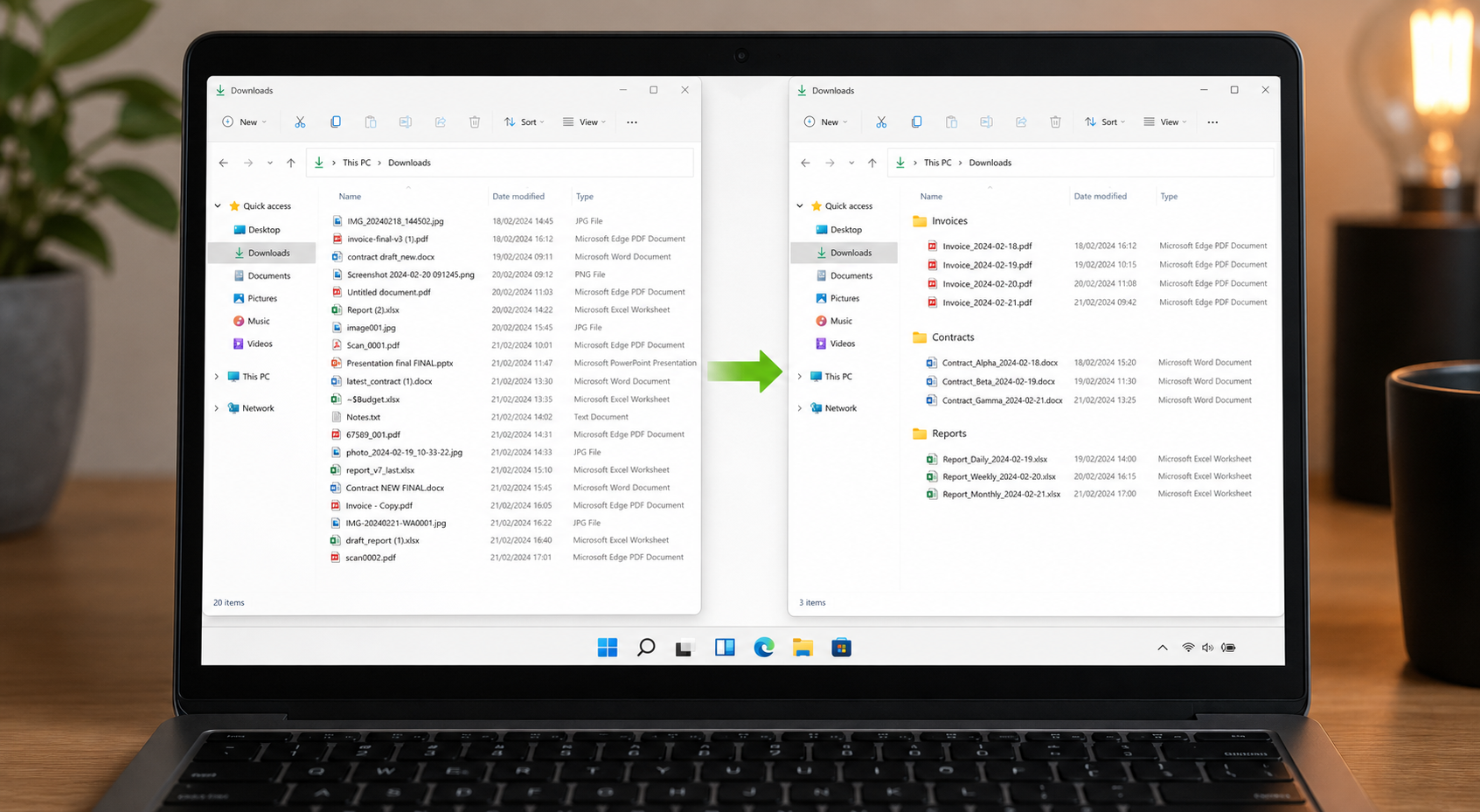
What it does: Renames, sorts, and organises a messy folder of business files by date, type, or project.
What you need: A folder with messy files. Downloads folder, desktop, a shared drive. Point Claude at it.
What to tell Claude:
“Look at every file in the ‘messy-files’ folder. Rename each file using this pattern: YYYY-MM-DD-Description.ext. If a file has no clear date, use the file’s creation date. Organise files into subfolders by type: Invoices, Contracts, Reports, and Other. Create a log file called ‘organisation-log.md’ listing the old name, new name, and folder for every file.”
What to expect: Claude renames and sorts every file. The log gives you a complete before-and-after audit. This is especially powerful for shared drives that have accumulated years of inconsistently named files.
Weekly time saved: 30 to 60 minutes (file management).
What makes a Claude Cowork workflow reliable?
After running hundreds of these workflows, three patterns emerged:
- Always spot-check the output. Claude is fast but not perfect. Open the spreadsheet, read the drafts, glance at the file names. Trust but verify.
- Keep your CLAUDE.md updated. When you change your business, update the file. When you find a workflow that works, add it as an example in CLAUDE.md. The file is living documentation.
- Start specific, then generalise. “Create a receipts spreadsheet with these exact columns” works better than “organise my finances.” Claude performs best with clear, narrow instructions.
How do you build your own Claude Cowork workflows?
Once you have run these three, you will start seeing other tasks that fit the pattern. Client onboarding checklists. Invoice generation. Competitor research tables. Meeting note summaries.
The skill is not in writing the perfect prompt. It is in recognising which tasks are repeatable, structured, and file-based. If a task involves reading files and producing files, Claude can do it.
Frequently asked questions
Do these Claude Cowork workflows require any coding?
No. Each workflow is a plain-English instruction you copy, paste, and run in Claude Cowork. There is no terminal, script, or code involved — you point Claude at a folder and describe the task.
Does Claude send emails or change files automatically?
No. The email workflow drafts replies for you to review and send; it never sends mail itself. The file workflows produce a full before-and-after log so you can check every change before trusting it.
How much time do these workflows save?
Roughly 45 to 90 minutes a week for receipts, 60 to 120 for email triage, and 30 to 60 for file organisation — time normally lost to manual data entry, sorting, and renaming.
Series navigation: ← Part 1: Setup | Part 3: CLAUDE.md →
We wrote a guide on the one file that makes all of this work: your CLAUDE.md. It is the difference between Claude being a helpful chat tool and Claude being an employee who knows your business.
Read: CLAUDE.md for Small Business Owners: Your 10-Line Employee Handbook
And if you want a structured path from your first workflow to building a full operations system:
Enrol: Automate Your Business Admin with Claude Cowork ($50)
If you have not set up Claude Cowork yet, start here:
Read: Claude Cowork for People Who Have Never Used a Terminal